Advocate Guide
Workflow Docs streamlines document generation and client communication directly within LegalServer.
Generating Documents
To launch an interview and generate documents:
- Navigate to a case in LegalServer.
- Click the Launch Interview button in the sidebar or actions menu.
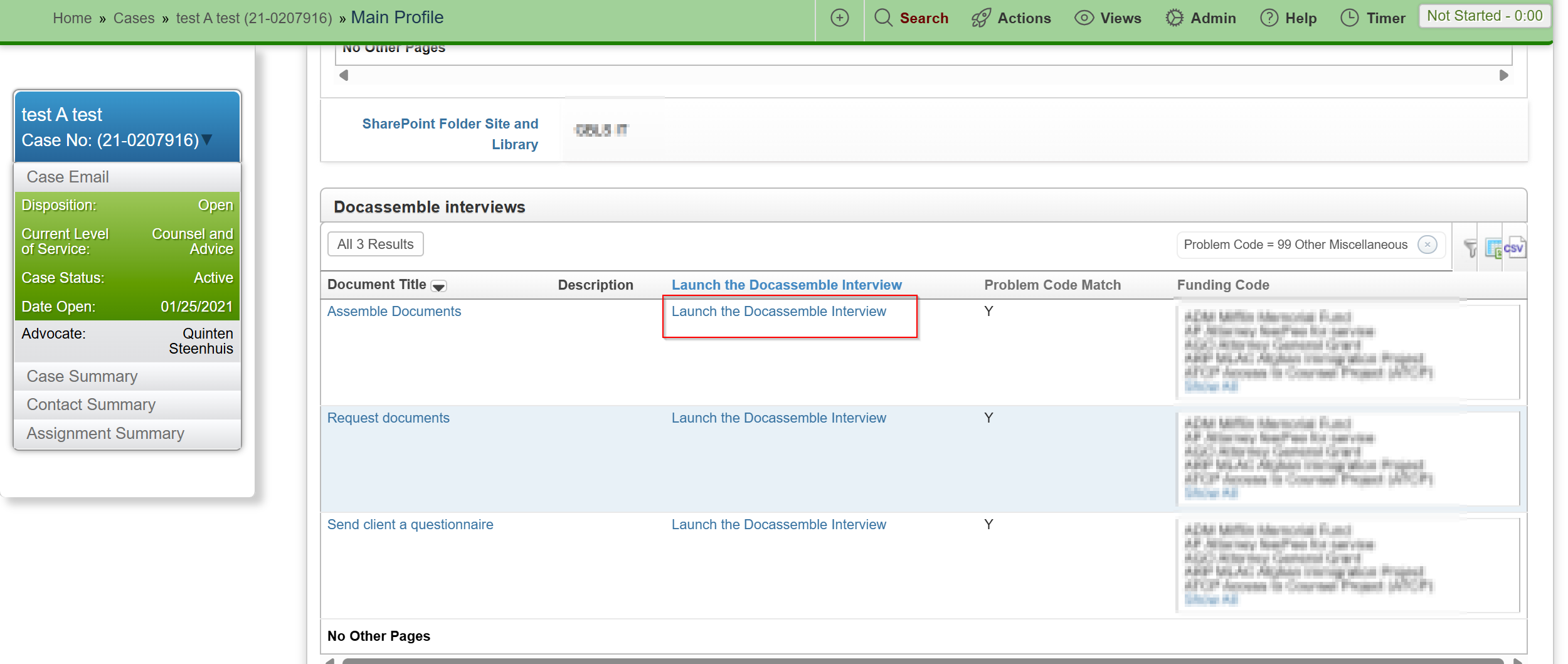
- A modal will appear to guide you through the document assembly process.
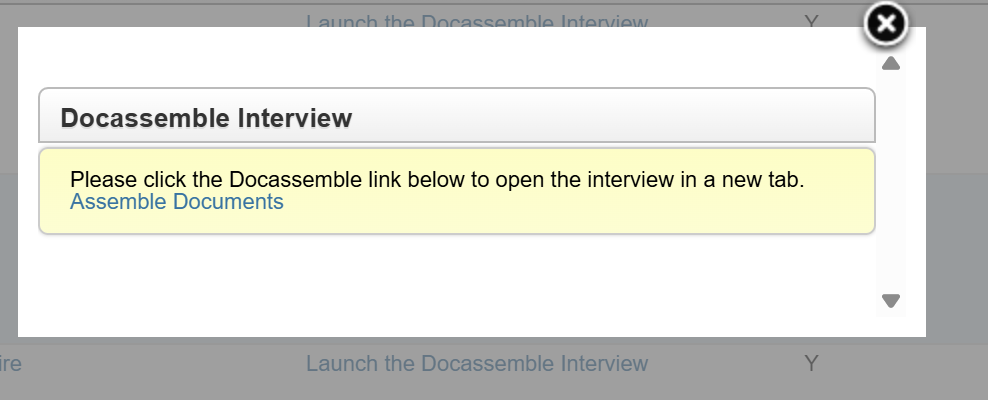
For the full step-by-step walkthrough, see the Assemble Documents Workflow guide.
Collecting Signatures and Documents
Workflow Docs offers two ways to collect files from your clients:
1. Standalone "Request Documents" Workflow
Use this dedicated workflow when you need to collect multiple files (like leases, ID cards, or pay stubs) as a standalone task. This is the best choice for bulk document collection early in a case. See the Request Client Documents guide.
2. In-line Document Requests (Supplemental)
You can also request a document in-line as part of an "Assemble Documents" or "Signature Request" flow.
- How it works: If a template requires a specific file (e.g., a photo of an incident), the client will be prompted to upload that file during the signature or interview process.
- Result: The uploaded document's name or a link to it will be inserted directly into the generated template, and the file itself will be saved to the LegalServer case record.
3. Multi-Party Signing (Electronic or Print)
For documents that need signatures from more than one person — clients, witnesses, attorneys, advocates — use the multi-party signing flow. See the Multi-Party Signing guide for the full walkthrough. You can choose Electronic (each requestee gets a personal signing link) or Print (generate clean printable PDFs/DOCX for paper signatures).
- Signature Requests: Send legally binding e-signature requests to clients with a single click. Tip: If you have a one-off document that isn't a pre-defined template, you can simply upload it during the "Assemble documents" or signature workflow to request a signature quickly.
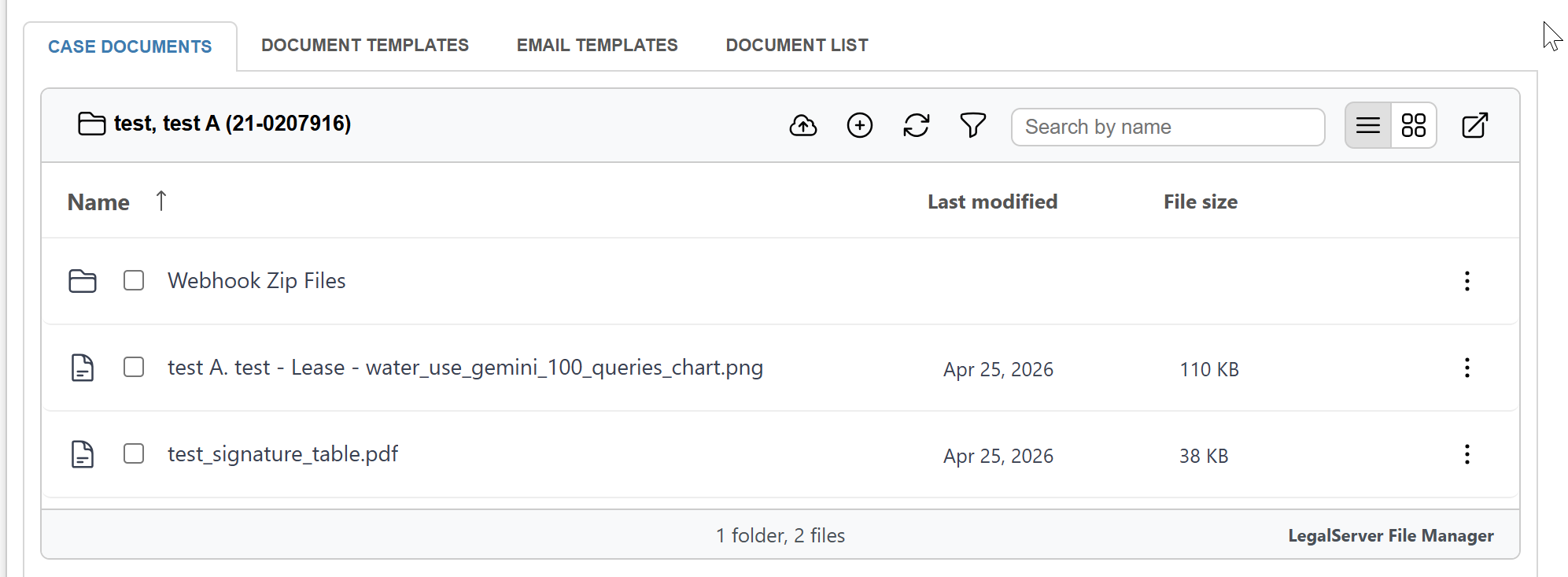
- Document Collection: Share secure upload links. Once uploaded, documents appear automatically in the case folder.
AI-Powered Questionnaires
Use AI to draft follow-up questions for clients to fill gaps in intake. See the Send Client a Questionnaire guide.
- Translation Built-in: You can send a questionnaire to a client in Spanish (or another preferred language), and Workflow Docs will automatically translate their responses back into English before saving them to the LegalServer case record.
AI-Assisted Letter Drafting
The "Assemble documents" interview can also generate a draft letter from scratch using AI. You describe the purpose and key points, choose a language, and the system produces a draft you can edit and finalize. This option can be turned off per organization by your administrator.
Troubleshooting: Missing Workflows
If you do not see the standard options like Assemble documents, Request documents, or Send a questionnaire, they may be hidden by a LegalServer filter.
- Toggle Filters: In the Workflow Docs modal, you can click Remove Filters to show all available workflows, even those not specifically tagged for the current case type.

- Permanent Changes: If a specific workflow should always be visible for a certain case type, please ask your LegalServer Administrator to update the workflow filters.