Assemble Documents Workflow
This walkthrough details the steps to generate, upload, and request signatures for DOCX and fillable PDF documents using the Docassemble integration within LegalServer. PDFs can be filled or printed, and can use electronic request routing when a sidecar explicitly requests a field or a compatible person-signature label is inferred.
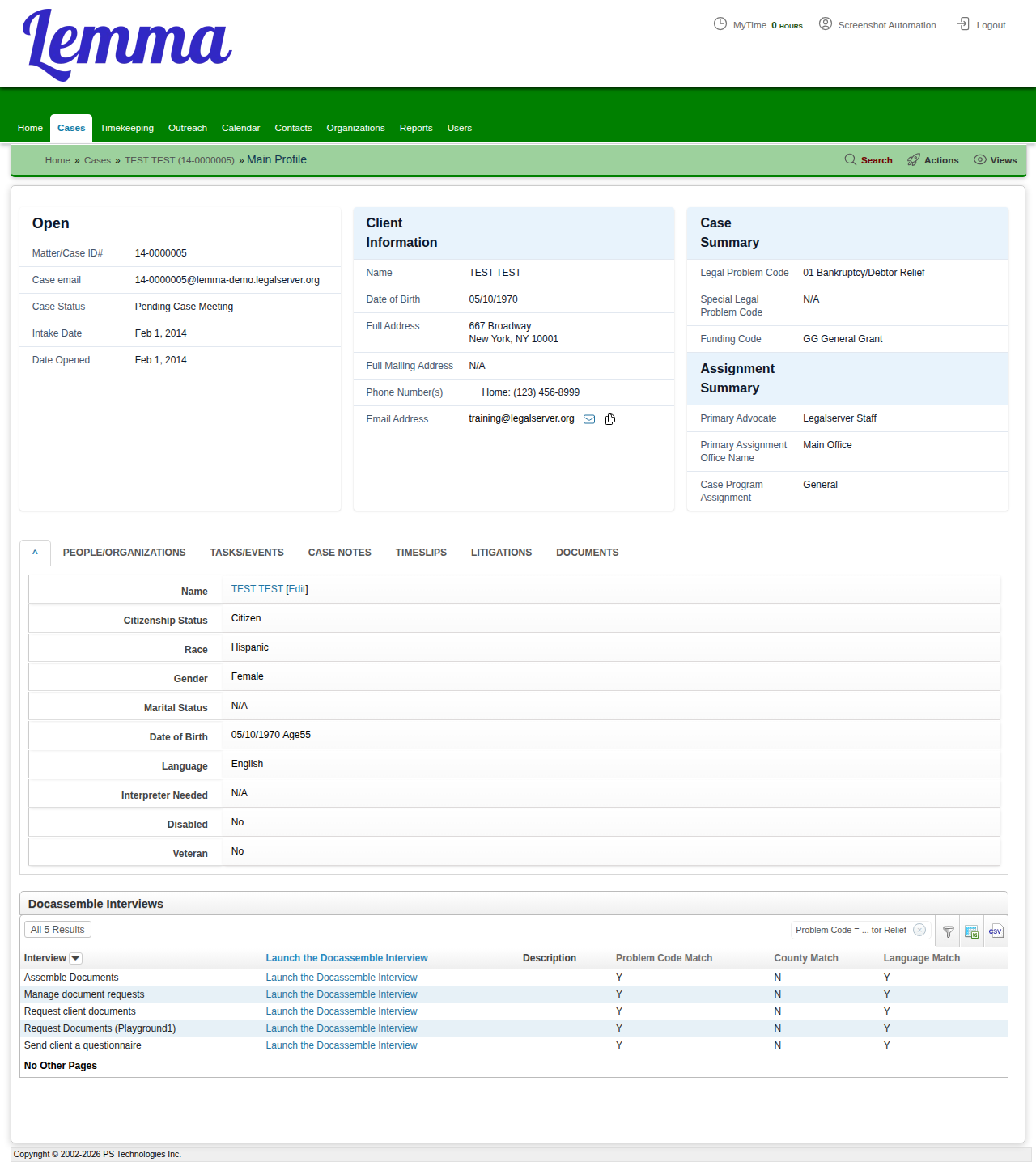
This workflow assumes you have already navigated to the LegalServer matter profile and clicked the Assemble Documents link under the Docassemble Interviews block.
Progress sections
The workflow uses named progress sections instead of the standard percentage progress bar. The sections depend on who is using the interview:
- Advocate: Select templates → Prepare documents → Complete requested information → Review and sign → Finish
- Requestee: Review and sign → Complete requested information → Finish
Print-mode workflows may skip electronic signing sections. The active section updates as the workflow moves through the applicable steps.
Step 1: Choosing the Document Source
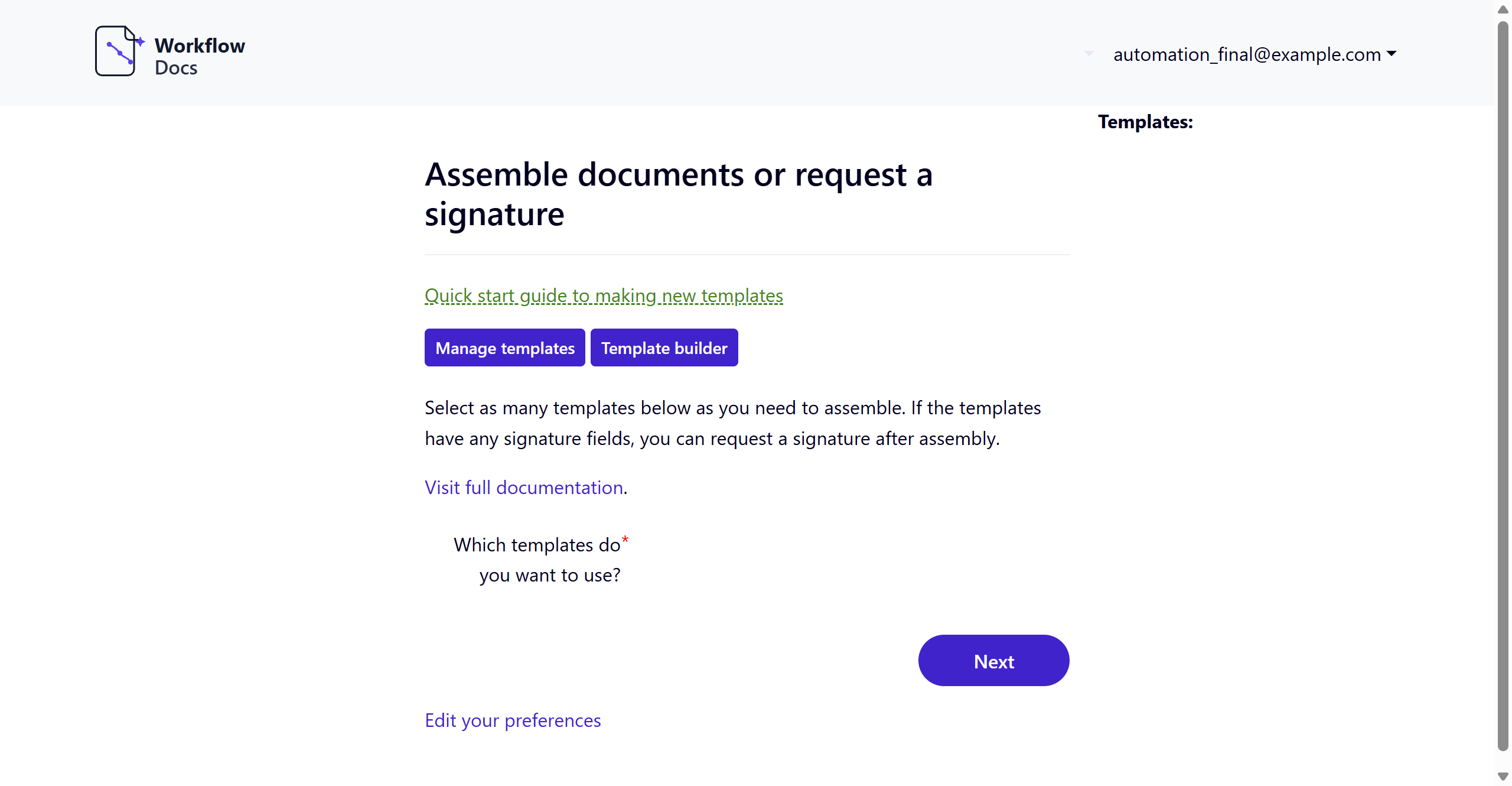
When the interview launches, you'll see the source picker and a full variable reference. The Manage templates shortcut is shown only to users with the manage_templates, admin, or developer privilege. The Template builder shortcut can be hidden by your organization; either shortcut's visibility does not replace the tool's own access checks.
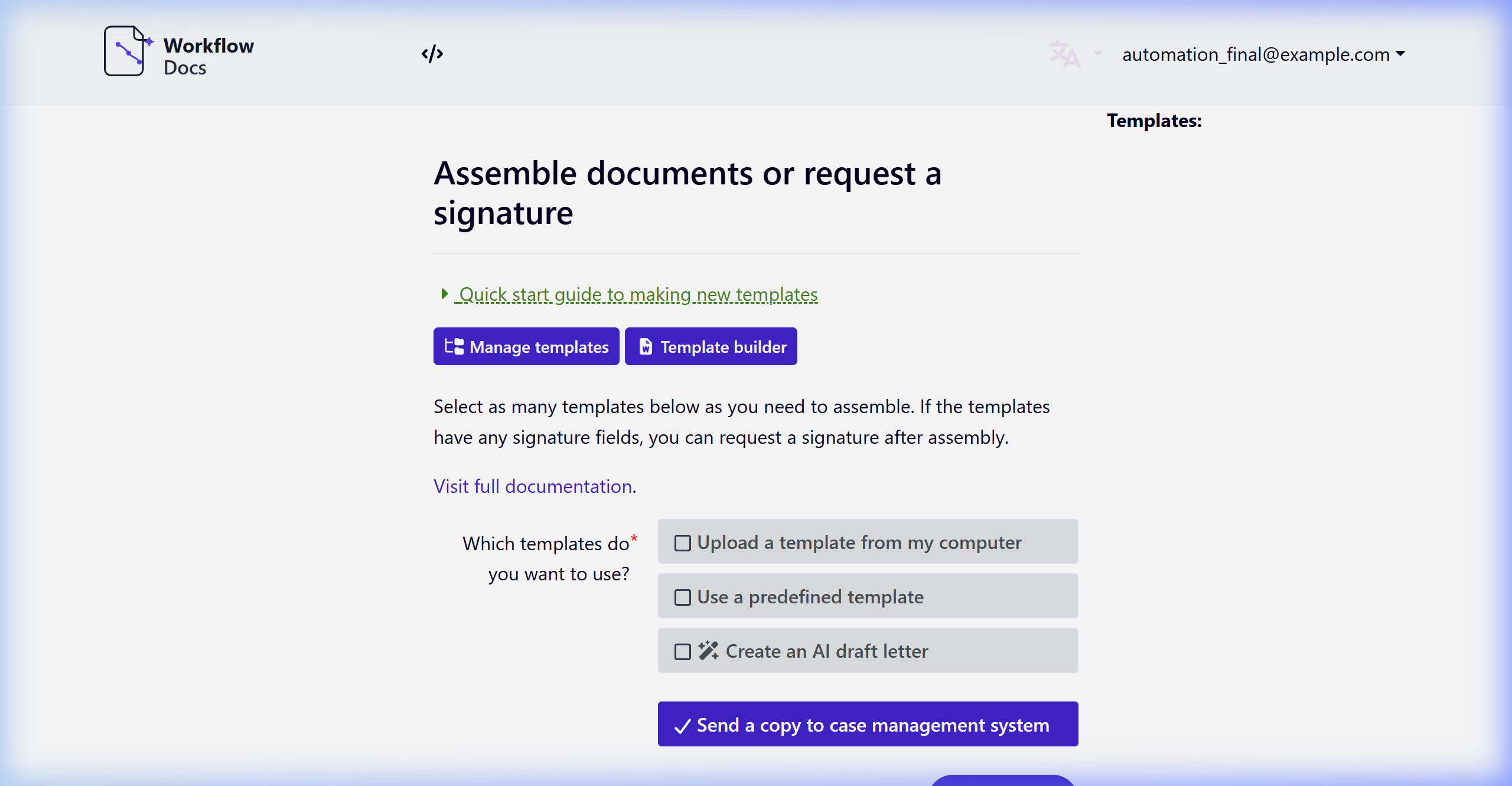
You can mix and match three sources in one batch:
- Upload a template from my computer — one or more
.docxor.pdffiles. Useful for one-off documents that aren't in your library yet. - Use a predefined template — pick from the standard library in your S3 storage.
- Create an AI draft letter — let the system generate a draft from the case context. (May be disabled by your administrator.)
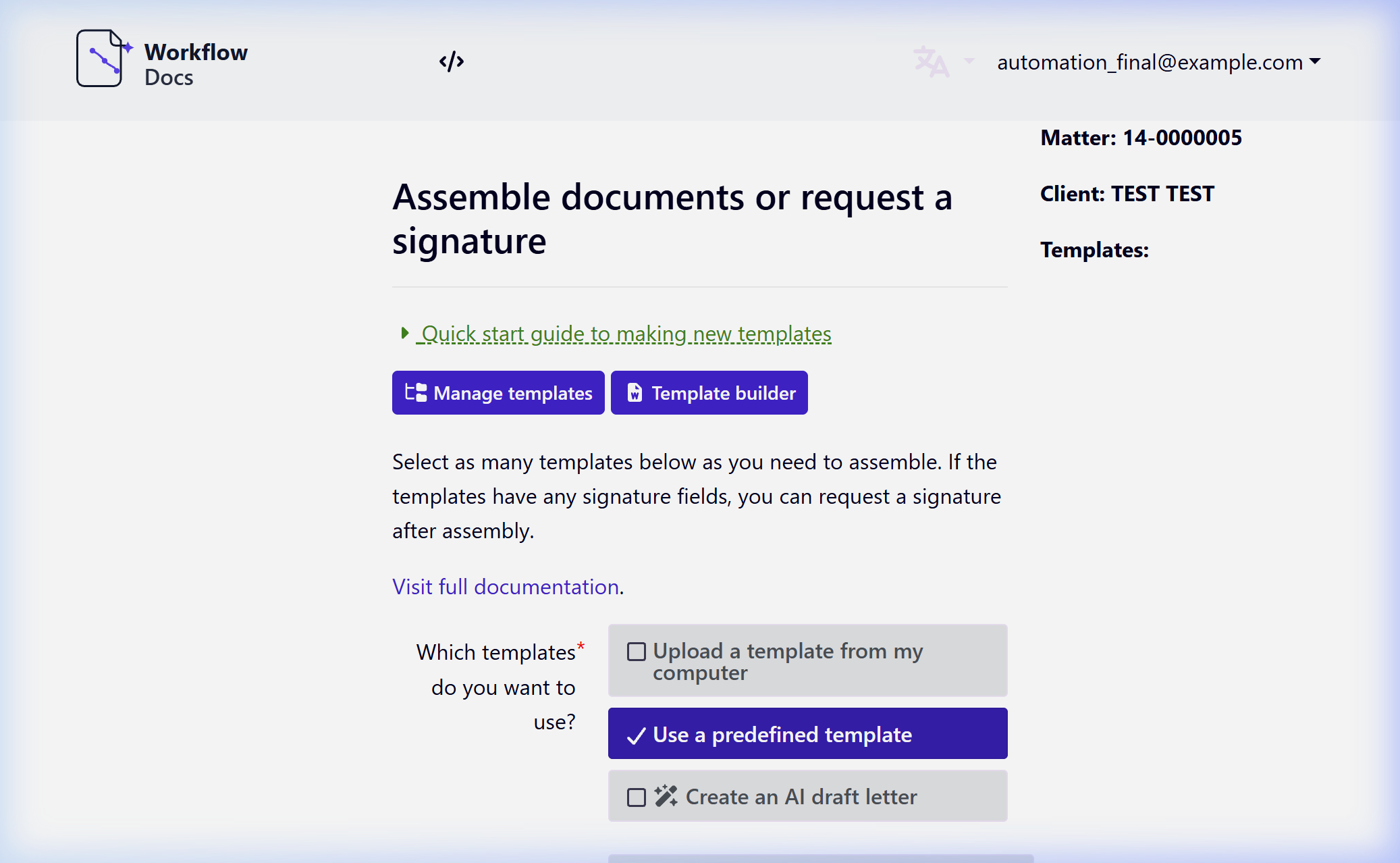
Uploading an Existing Document
If you select Upload a template from my computer:
- You will be prompted to browse your local file system.
- You can upload DOCX, PDF, and optional matching YAML sidecar files. A sidecar such as
Form.ymlconfiguresForm.pdf; the filenames must use the same case-sensitive stem. Sidecars are configuration only and are not assembled as documents. - PDFs are processed using their fillable fields. Explicit sidecar mappings and compatible inferred labels can populate fields; compatible person-signature labels can route fields to requestees. Signature fields are filtered out of unsigned renders and re-introduced in the final pass.
- Once selected, the system will process the document(s) and attach them to the LegalServer matter.
See PDF Templates and Sidecar YAML for inferred mappings, sidecar rules, and the mapping review.
AI Draft Letter
If you select Create an AI draft letter:
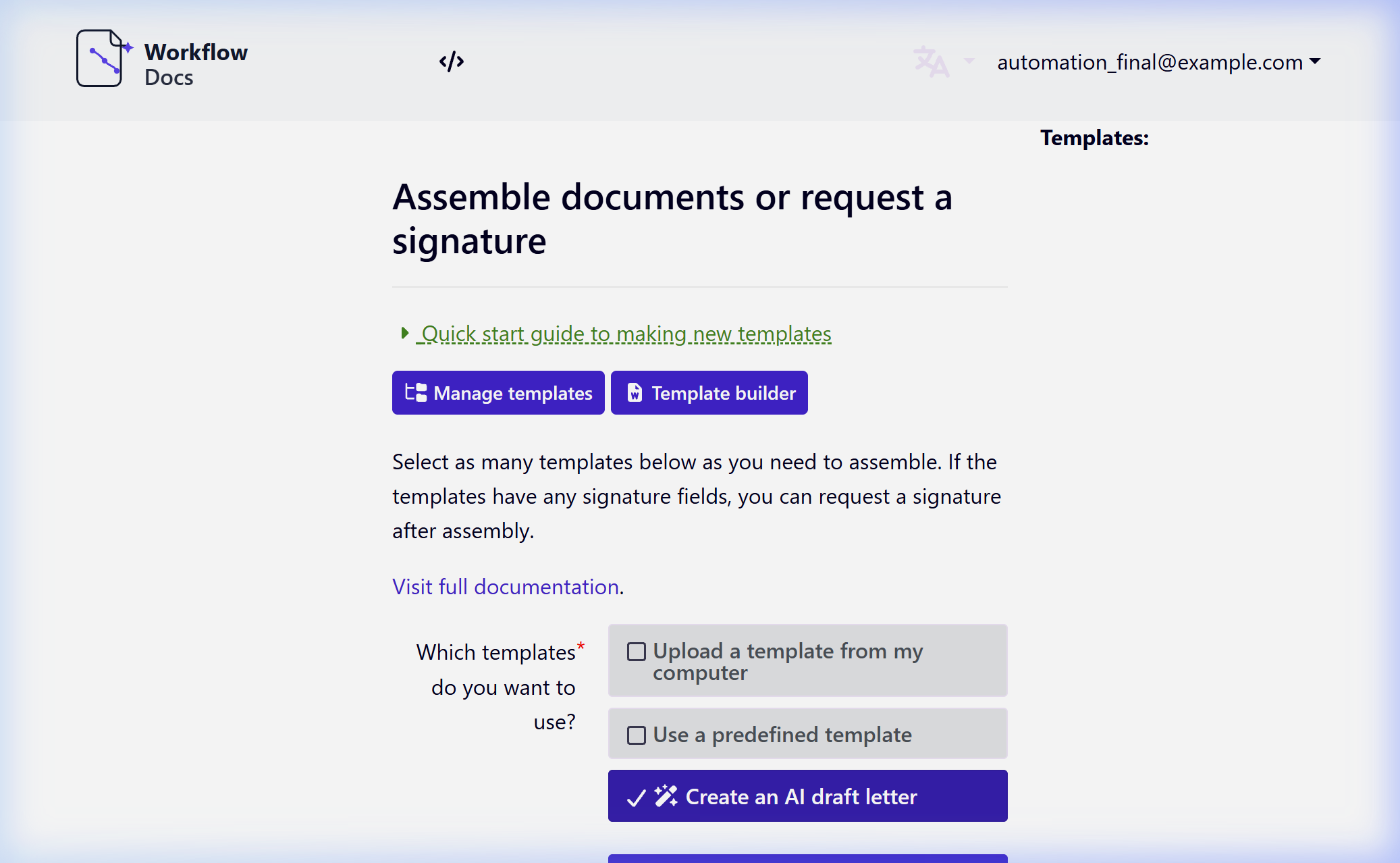
- The system processes the case context (and any fields you choose) and generates a draft using the configured AI provider. Workflow Docs typically uses Azure OpenAI Service; server administrators may configure OpenAI directly.
- You can ask the AI to revise the draft before finalizing.
- This option is hidden if your organization has disabled it (see Administrator Guide → Client Configuration).
Step 2: Choosing the Completion Mode
After selecting your sources, you choose how the documents will be completed:
| Mode | What happens |
|---|---|
| Electronic (default) | Each ` |
| Signatures and requestee fields are blanked so the document can be printed for paper completion. It is uploaded to LegalServer only when usable matter data is available and the upload option is enabled. |
Choose Print when the document will be signed by hand, mailed, or signed in person without using the signing links. Choose Electronic when you want each signer to receive a personal link.
Step 3: Choosing a Predefined Template (With & Without Signatures)
If you select Use a predefined template, you'll see a list of available templates. Your library can contain any mix of DOCX and PDF. After PDF selection, advocates can optionally open Review PDF field mappings beneath the selected-template list to check explicit, inferred, DACatchAll, and unmapped fields before continuing.
Standard Letters (No Signature Required)
- Select a template like
Client_LetterorLetter_to_Client_re_Telephonic. - These templates will bypass the signature routing logic and proceed directly to gathering dynamic variables.
Signature Requests
- Select a DOCX template that contains
| requestfields, or a PDF with explicitrequestsidecar mappings or compatible inferred person-signature fields. Ordinary inferred PDF fields are filled directly and are not automatically routed to requestees. - The downstream flow will prompt you to choose each requestee's delivery method (email, SMS, both, show URL, or sign in person) and the signing order (advocate-first or advocate-last).
- See the Multi-Party Signing guide for the full walkthrough.
Template Companion Actions
- If a predefined S3 DOCX template has an optional
.ymlcompanion file in the same S3 folder, and usable LegalServer launch data is available, the corresponding template actions run after the electronic document is finalized — for example, stamping compliance flags on the LegalServer matter. They do not run for uploaded-from-computer or print templates.
Step 4: Entering Dynamic Case Information
Once a predefined template is selected, the workflow prompts you for the specific information needed to populate the document.
Because you launched this workflow directly from the LegalServer matter profile, many fields are automatically pre-filled using case data!
You will verify or enter:
- Client Information: First name, last name.
- Advocate/Attorney Information: First name, last name of the assigned staff member.
- Opposing Party / Defendant: Type of defendant (Person vs. Organization) and their name.
- Any custom variables defined by the template — for example,
| ask(question="What is your favorite baseball team?")will surface as a question in the interview.
Step 5: Final Generation
After all variables are confirmed, click Next.
- For Electronic mode: Automatic signing-link delivery depends on each requestee's selected email/SMS method; Show URL links are shared manually and Sign in person requests stay in the advocate's session. After all requests are complete, participants other than the last completer may receive an email containing a secure download link when they have an email address. The last completer continues to the final download screen.
- For Print mode: The printable documents are generated immediately. Print them and collect any required signatures on paper.
Uploading to LegalServer
For both modes, when the LegalServer upload toggle is on and usable LegalServer launch data is available, the generated documents and relevant requested uploads are bundled into a ZIP and uploaded to the LegalServer case file as a documents-tab entry. The LegalServer upload PDF setting controls the format of generated documents inside that ZIP; requestee uploads retain their original format.
Your administrator can choose whether generated documents inside the ZIP are PDF or DOCX with the legalserver upload pdf setting. Uploaded supporting files retain their original formats. This setting does not change the download options shown in Workflow Docs. See Administrator Guide → Client Configuration.
Working with Many Templates
If you select more than two templates, you'll see a "please wait" screen while the system prepares the downloads in the background. Smaller batches complete inline without the waiting screen.